Double-track main line
Work in progress: This section is still a work in progress — content is being added and revised continuously.
Double track runs more relaxed: two trains at once without getting in each other’s way. In this part you use the parallel tool to lay a second track next to the main line and connect the two with a crossover.
Starting point: your base oval from Part 1 — you lay the second track next to its main line. (Every part of the series builds on the oval, not on the previous one.)
Step 1 — Snap it parallel
You never have to hit the correct spacing yourself: drop a straight roughly next to the line, grab it and push it towards the main track. As soon as you get close, the live magnet pulls the track onto the system parallel spacing and aligns it lengthwise with its neighbour — the dimension line shows the spacing while you drag.
Step 2 — The second lane in one go
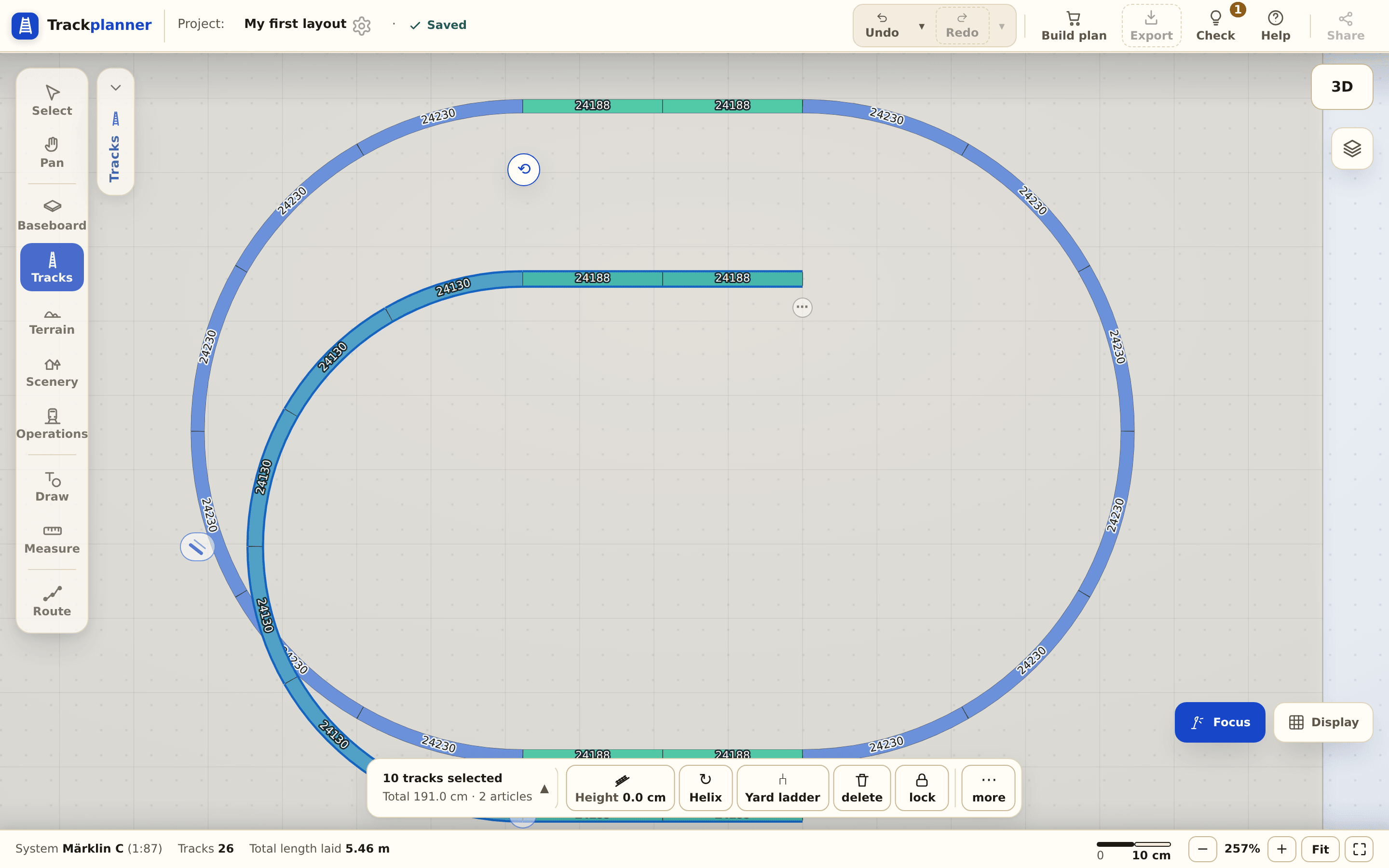
For a whole parallel section there is an even faster way: select a connected section of your main line — the ∥ symbol appears on the highlighted strand, on each side where a parallel track fits. Tapping the inner or outer ∥ lays a concentric second track alongside it at the correct system spacing.
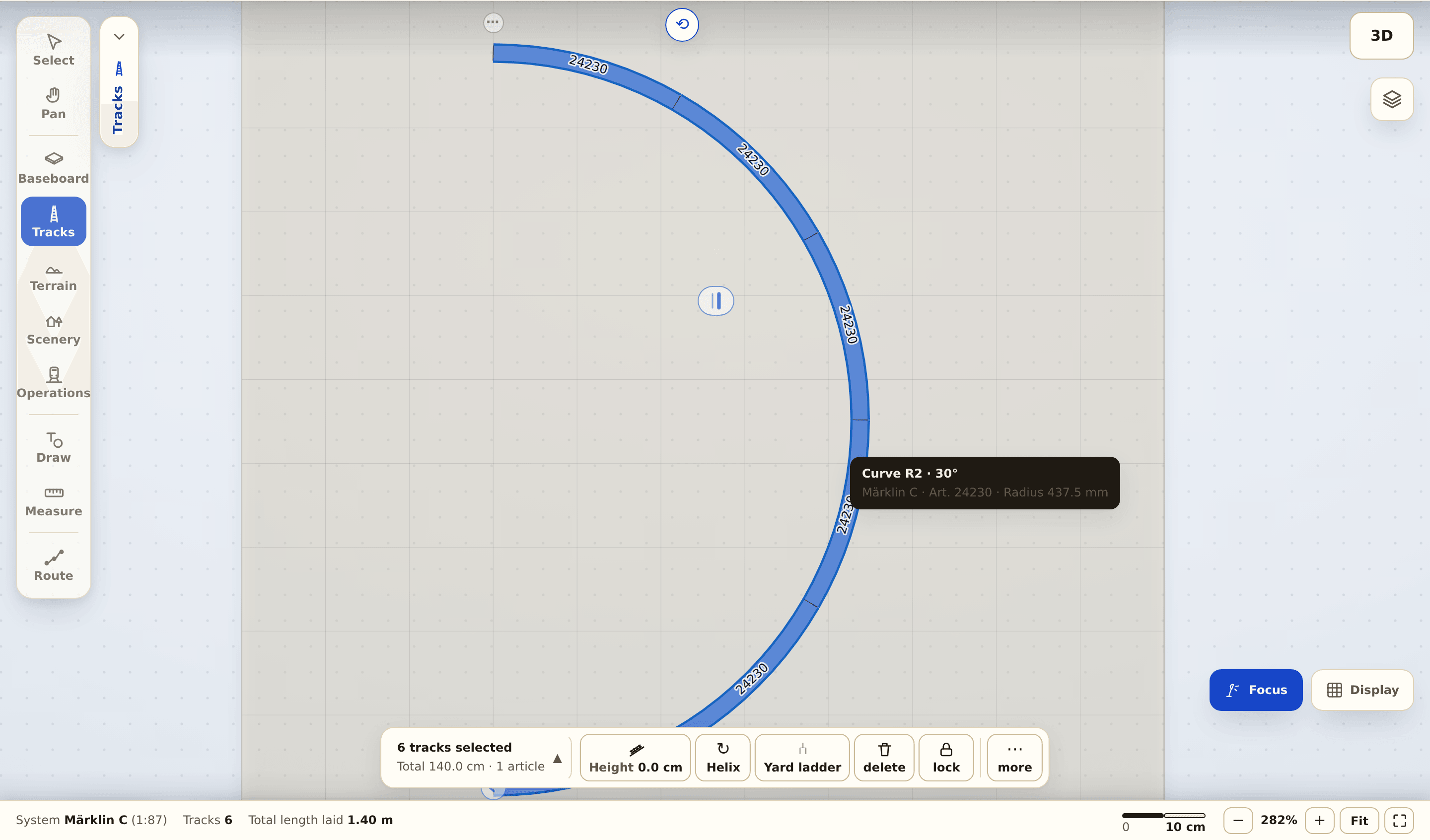
Extend the second lane across at least four track pieces so a real parallel section forms — in the curves the spacing stays concentric (in the Märklin C geometry, for example, R1 nests exactly parallel inside R2).
Step 3 — The switch-over
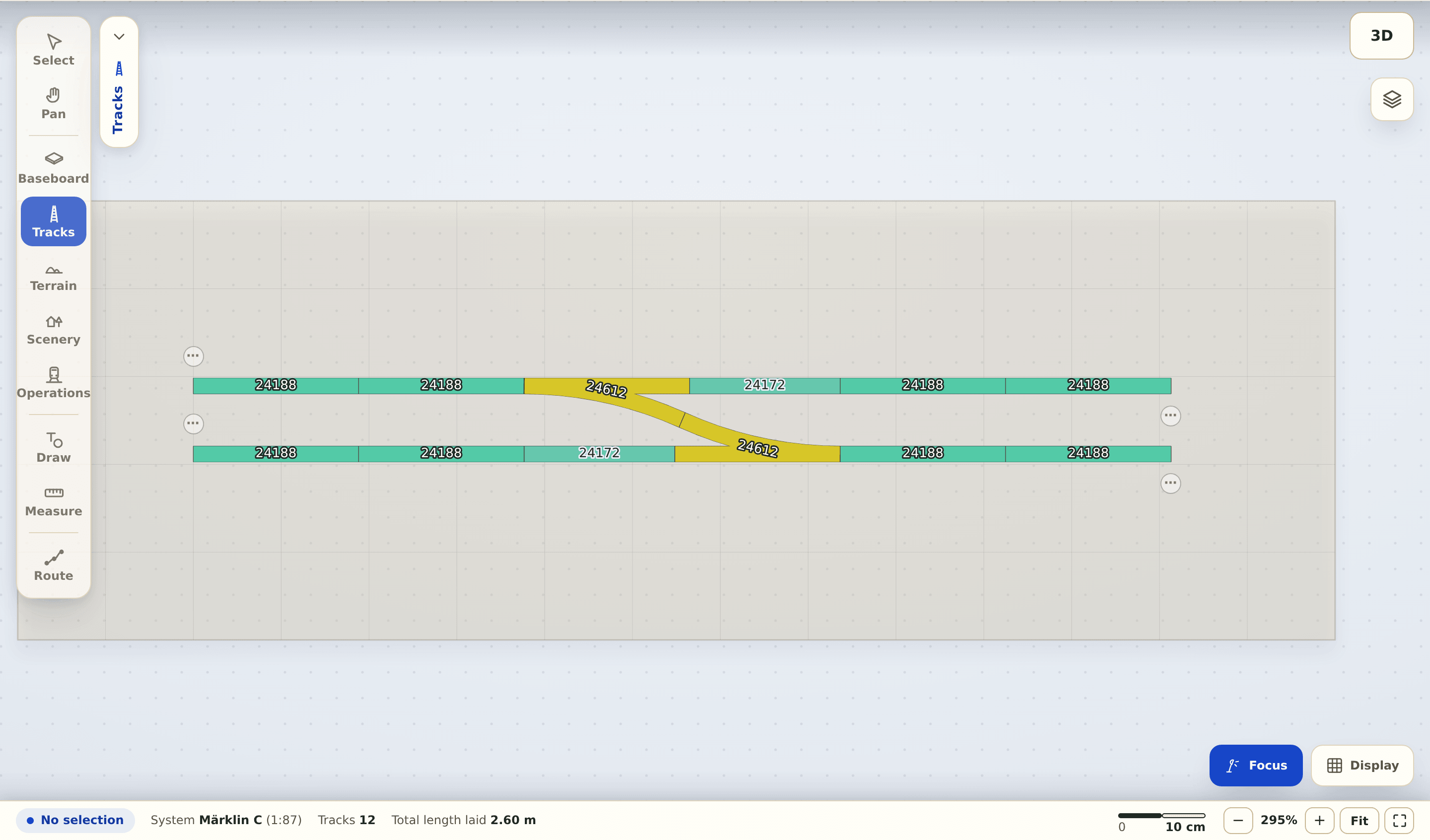
Place two turnouts as a crossover so a train can move from one track to the other.
What’s next?
- Part 5 (soon): Run trains & spot problems — then something moves.
- More on this: Minimum radius · Parallel track (glossary).